Create and edit tasks
Create tasks from the Tasks page, calendar, templates, or an entity record. Edit any field on an open task.
Where to find it
Section titled “Where to find it”- Tasks → New Task
- Calendar : right-click a day → quick create, or open a task from the grid
- Templates : pick a template to pre-fill fields
- Entity detail: create a linked task from the Tasks tab
Create a task
Section titled “Create a task”- Open Tasks → click Create Task
- Enter a Task title
- Optionally, Add a task description to provide additional details about the task.
- Set a Due Date - see Dates and scheduling
- Set a Frequency - see Recurring tasks
- Select a Role and/or specific Assignees
- Optionally link an Entity - see Linking tasks to entities
- Pick an Alert Level for email reminders - see Alert levels
- Add an Est. Time to complete the task if needed
- Add any additional Notes & Instructions if required
- Click Create Task
Notes and Instructions
Section titled “Notes and Instructions”- The Notes & Instructions section supports rich text - type
/for formatting commands - Using formatting commands you can add a Check List, Table, Numbered List and more to the Notes & Instructions section
- Estimated hours pre-fills the time-spent field when you complete the task
Tasks linked to an entity can also display its Pinned Notes in a floating panel. You can hide the panel and show it again while working on the task.
Set recurrence
Section titled “Set recurrence”On the same form, open Frequency to make the task repeat. See Recurring tasks.
Edit a task
Section titled “Edit a task”- Open the task from Tasks, Dashboard, Calendar, or from the Tasks tab in an entity
- Change any field inline or in the task panel
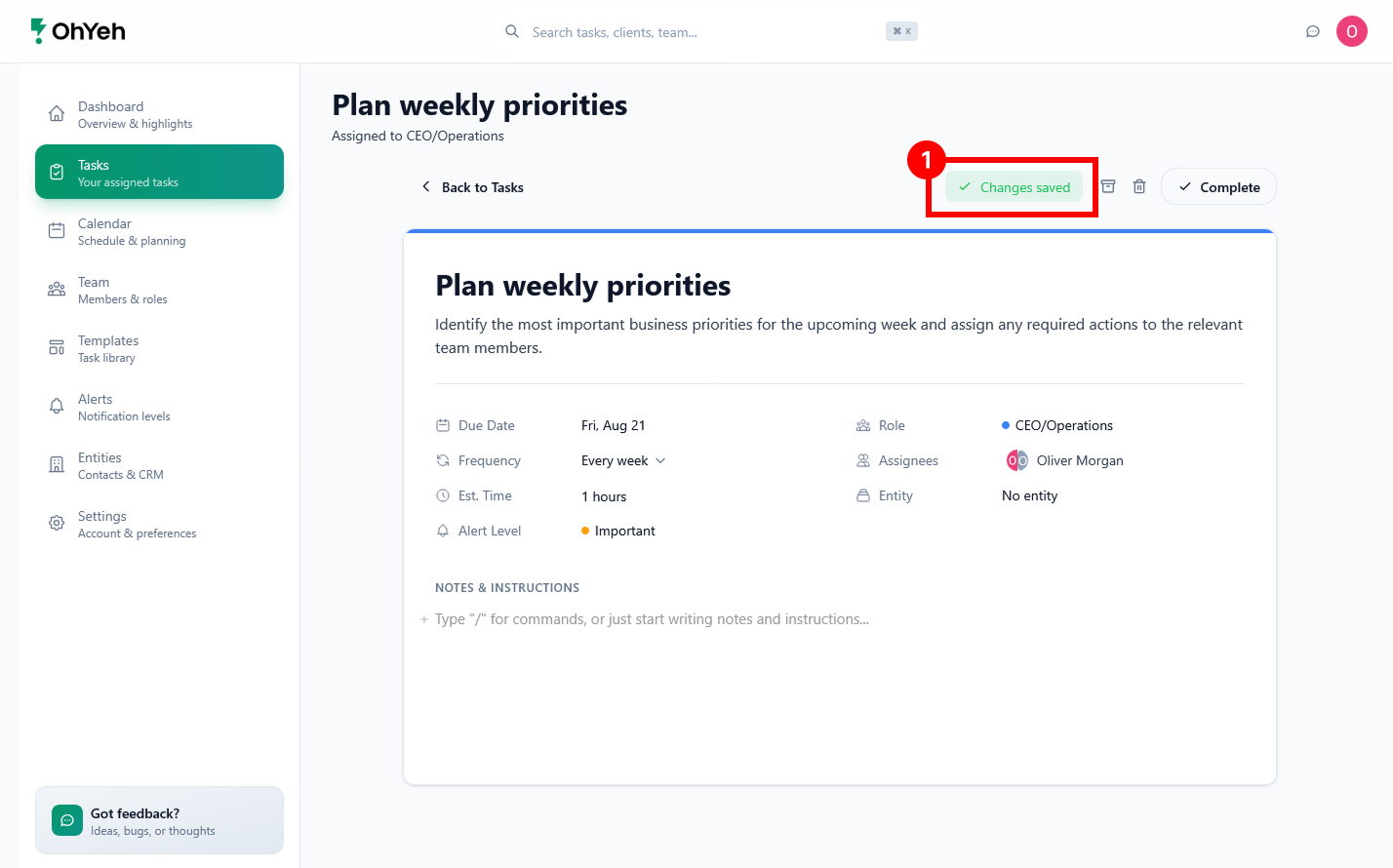
- Any changes you make will be saved automatically. The save status indicator 1 shows when your changes are being saved or have been saved
Changing a task’s Role clears all current Assignees. Select the assignees again for the new role.