
Tasks
The Tasks page is your main list of work - search, filter by status, role, member, or entity, and open tasks to edit or complete.
Where to find it
Section titled “Where to find it”Open Tasks in the app sidebar.
In this section
Section titled “In this section”- Dates and scheduling: due dates and working days
- Recurring tasks: repeat schedules
- Create and edit tasks: full new-task flow
- Complete a task: finish work and log time
- Templates: built-in library
- Custom templates: your workspace patterns
Create a task
Section titled “Create a task”- Click Create Task
- Follow the steps in Create and edit tasks
Filter the list
Section titled “Filter the list”Use the filter menu to filter tasks. You can filter for task Status, Role, Assignee and Entity. You can also use the search bar to find tasks by keywords included in the task title or description.
To clear your filters, click Clear filters to remove all applied filters at once. Alternatively, you can remove individual filters by clicking the X on the filter you want to clear.
Filter choices persist when you return to the page.
Archive tasks
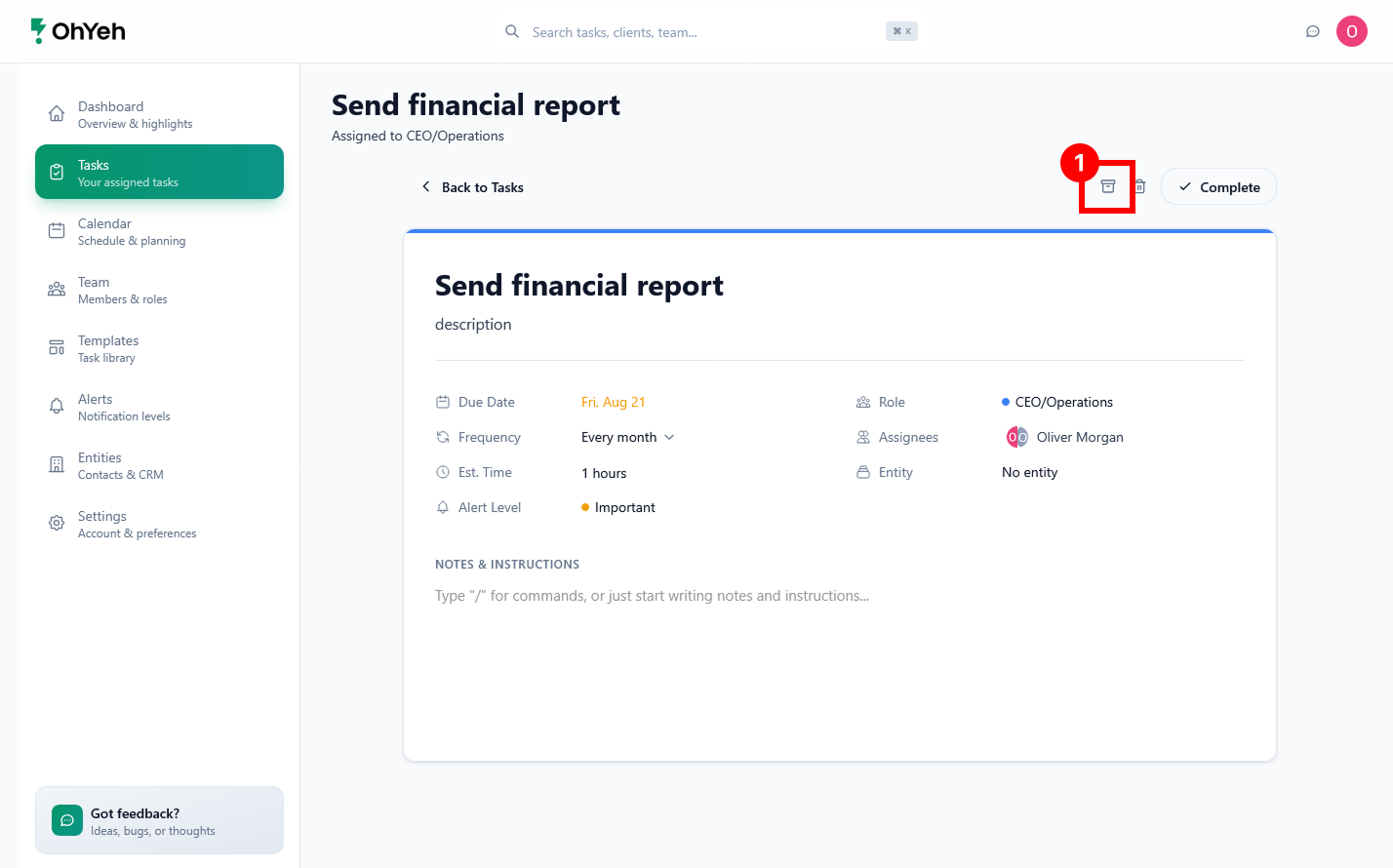
Section titled “Archive tasks”- Open a task or use the row menu
- Choose Archive task 1
- Open the filter menu → All archived to view archived tasks
Archived tasks stay out of default lists but remain searchable.
Open and complete
Section titled “Open and complete”Click on a task row to open the detail panel. Use Complete to finish - see Complete a task.